

Course Copy and Export Resources
If you are concerned that you may lose your course data based on the course removal plan dates (courses are removed 730 days after the maximum last day of any class), then you may wish to consider copying it into a personal development course or exporting an archive of your course components.
Please visit the following help page and see the drop-down for “What course components can be imported, exported, and copied” for a full list of what tools can and cannot be copied or exported.
Note: Student data is not included within the copy or export process. Data such as grades, submissions, and feedback given will not be included.
Your exported files can be stored locally on your device or in your OneDrive. Copying course components will duplicate your course’s tool information in a selected alternative course shell (e.g. personal development course).
Copying all Course Components
Copying will give you the ability to move your course content from one Brightspace course to another.
- If you run your course regularly this process can be used to move the content from the previous offering to a new offering.
- If you would like to work on your course material outside of an offering, you could copy the components into a personal development course.
- If you would like to save/download an archive of your course, follow the steps for exporting below.
Steps for Copying Your Course
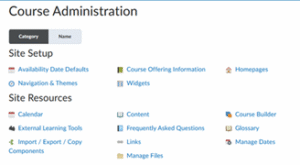
- In the course offering that you want to copy components INTO, on the navbar, select Course Admin > Import/Export/Copy Components.
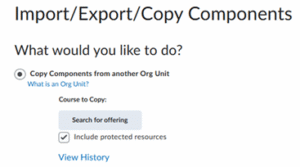
- Select Copy Components from another Org Unit. Select Search for Offering
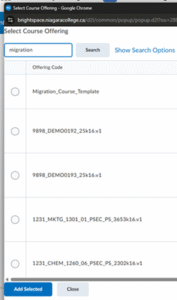
- Use the search function to locate the course offering containing the components you want to copy. Select the course then click Add Selected.
- To copy all course components, select Copy All Components. D2L recommends that you copy all components between courses to ensure you maintain all desired associations and then delete any undesired material in the new course.

- You do also have the option to copy individual components by selecting Select Components. For backup purposes it is recommended to copy all materials.
Export Your Course
Exporting will provide you with a downloadable zip file of your course content, assessments, gradebook columns, as well as other tool related data. If you would prefer to instead copy this information into an alternative course site of your choosing, please see copy course components above.
To learn more about exporting your course data, please see the steps below.
- In the course containing the components you want to export, go to the course navbar and select Course Admin (you may need to click More first), then Import/Export/Copy Components.
- Select Export as Brightspace Package
- Select Start.
- In the Select Components to Export section, to export all components, select the Select All Components check box or select the check box for the particular components you want to export. To export only certain items from a component, select the Select individual items to export radio button.
- Select Continue.
Important: On the next page (Confirm Components to Export), there is a crucial step to ensure that course files are included in the export. Be sure to check the box at the bottom of the page for “Include course files in the export package”.
- If you chose Select individual items to export for any component in the previous step, the Select Items page appears. Otherwise, the Confirm Components to Export page appears. Be sure to check the box at the bottom of the page for “Include course files in the export package”, if you wish to include them.
- Select Export.
- The Export started dialog displays to confirm the export is underway.
- Select Done.
- When the export package is ready for download, a notification is generated and can be accessed from the bell icon in the navigation bar (top right). Once it appears, select the Export finished notification message. This directs you back to the Import/Export/Copy Components tool in your course.
- Select the Select here to download the export Zip package link.
Final considerations
Course export files should never be opened or tampered with, otherwise they may become corrupted. The files themselves can be easily imported into a Brightspace course shell of your choosing, using the Import Course Components process.