

Accessing Niagara College SharePoint Online
Step‑by‑Step Guide for External Users
This guide outlines how external users can securely access files shared through Niagara College’s SharePoint Online. Access to shared content is protected using multi-factor authentication.
Before You Begin
Follow the steps below based on the type of email account you use.
- If your email address is not a Microsoft account (for example, Gmail, or an external work email that does not use Microsoft 365), follow Scenario 1: Non‑Microsoft Account Access Guide
- If your email address is a Microsoft account (for example, Microsoft 365 work accounts, Outlook.com), follow Scenario 2: Microsoft Account Access Guide
Scenario 1: Non‑Microsoft Account Access Guide
Use this guide if you are signing in with a non‑Microsoft email account, such as Gmail, Yahoo, or an external work email that does not use Microsoft 365.
If this is your first time accessing Niagara College SharePoint Online, you must first complete the Initial Setup section.
Initial Setup
During your first sign‑in, you will be guided through a one‑time security setup. This includes verifying your identity using a verification code sent to your email and configuring multi-factor authentication.
1. Open the SharePoint sharing link you received in your email
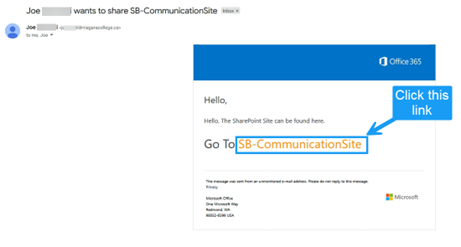
2. Enter your email address when prompted and click next.
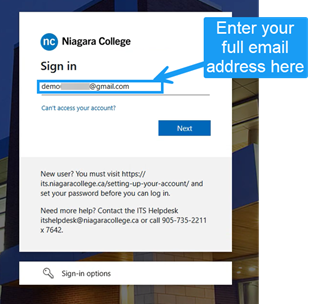
3. Check your email for the one‑time verification code.

4. Return to the SharePoint sign‑in page and enter the code.
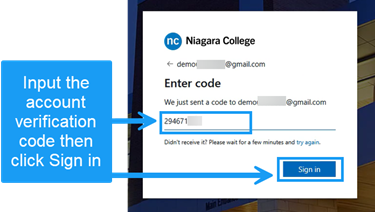
5. Review and accept permissions
- You may be prompted to review a permissions request from Niagara College. This request allows secure access to the shared resource.
- Select Accept to continue.
- Note: These permissions are required to verify your identity and provide access to the shared files. No changes will be made to your personal account.

6. Select Next to begin the multi-factor setup steps
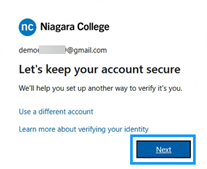
7. Multi-factor authentication (MFA) setup
- During your initial setup, you will be asked to choose how you want to verify your sign‑in.
- Select Set up a different way to sign in to view all available multi‑factor authentication options.
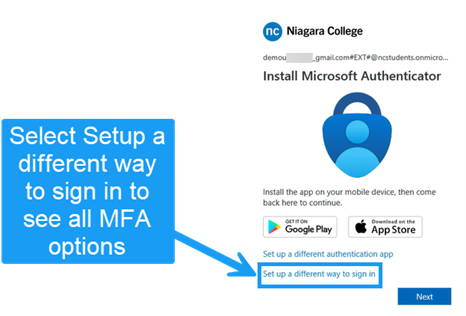
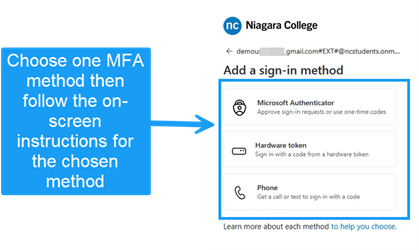
Niagara College supports the following MFA methods:
- Microsoft Authenticator app (recommended)
- Phone – SMS text message or phone call
- Hardware token
Select one of the following methods then proceed with the on-screen instructions for the chosen method.
8. Once verified, you will be granted access to the SharePoint Site and/or files shared with you.

How to Access Shared Files After Initial Setup
After completing the initial setup, you can access shared files or folders by opening the SharePoint link provided. You will be asked to sign in using an email verification code and the multi‑factor authentication method you chose during the initial setup.
Scenario 2: Microsoft Account Access Guide
Use this guide if you are signing in with an existing Microsoft account, such as a Microsoft 365 work account or Outlook.com.
If this is your first time accessing Niagara College SharePoint Online, you must first complete the Initial Setup section.
Initial Setup
During your first sign‑in, you will be guided through a one‑time security setup. This includes verifying your identity using a verification code sent to your email and configuring multi-factor authentication.
1. Open the SharePoint sharing link you received in your email
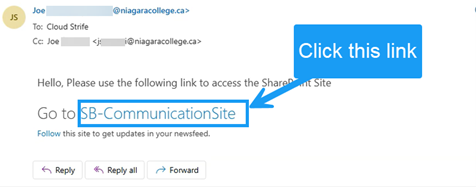
2. Review and accept permissions
- You may be prompted to review a permissions request from Niagara College. This request allows secure access to the shared resource.
- Select Accept to continue.
- Note: These permissions are required to verify your identity and provide access to the shared files. No changes will be made to your personal account.
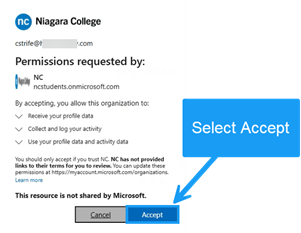
3. Select Next to begin the multi-factor setup steps
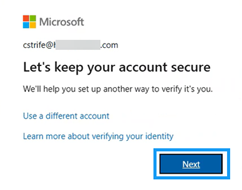 4. Multi-factor authentication (MFA) setup
- During your initial setup, you will be asked to choose how you want to verify your sign‑in.
- Select Set up a different way to sign in to view all available multi‑factor authentication options.
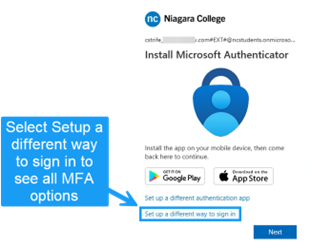
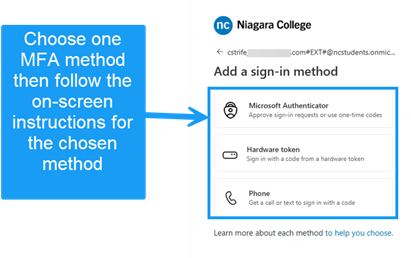
Niagara College supports the following MFA methods:
- Microsoft Authenticator app (recommended)
- Phone – SMS text message or phone call
- Hardware token
Select one of the following methods then proceed with the on-screen instructions for the chosen method.
5. Once verified, you will be granted access to the SharePoint Site and/or files shared with you.
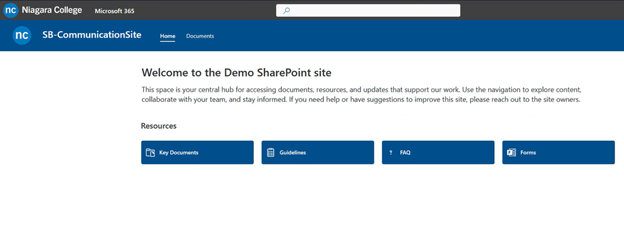 How to Access Shared Files After Initial Setup
After completing the initial setup, you can access shared files or folders by opening the SharePoint link provided. You will be asked to sign in using your Microsoft Account and the multi‑factor authentication method you chose during the initial setup.
Getting Help and Troubleshooting
If you experience issues while accessing a shared resource, try the following:
- Make sure you are using the same email address that received the SharePoint sharing invitation.
- Check your junk or spam folder for verification emails or sign‑in prompts.
- If prompted to set up security again, complete the on‑screen steps to continue.
- Try opening the SharePoint link in a private or incognito browser window or use a different browser.
If you are still unable to access the shared files after following these steps, contact the Niagara College staff member who shared the resource with you for assistance.