

Adobe Acrobat Studio
Overview
With Niagara College’s new Adobe license, all staff and faculty have access to Adobe Acrobat Studio.
Adobe Acrobat Studio brings together:
- Adobe Acrobat Pro for creating, editing, converting, combining, organizing, protecting, signing, and sharing PDF documents
- Adobe Express for creating and enhancing visual content
- Acrobat AI Assistant for working with and asking questions about document content
- PDF Spaces for organizing and sharing collections of PDF files
To access these features, you must sign in to Adobe Acrobat using your Niagara College account.
Sign In to Adobe Acrobat Studio
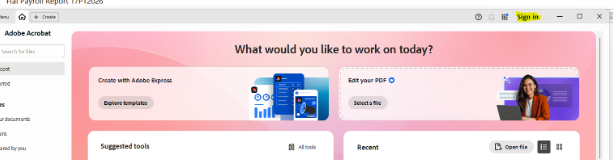
Step 1: Open Adobe Acrobat
Launch Adobe Acrobat on your computer.
If you are not already signed in, select Sign in in the upper-right corner of the application.
Step 2: Enter Your Niagara College Email Address
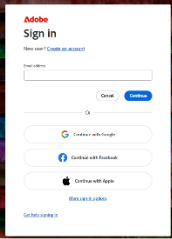
Enter your full Niagara College email address when prompted.
Select Continue.
Step 3: Complete the Niagara College Sign-In
You will be directed to the Niagara College sign-in page.
Enter your Niagara College credentials and complete any additional authentication prompts, if required.
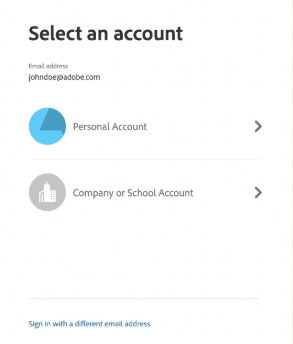
If you receive a pop-up asking to choose a Personal Account or Company/School account. Make sure to choose Company or School Account, otherwise proceed to Step 4
Step 4: Confirm Your Access
After you sign in successfully, Adobe Acrobat should recognize your Niagara College license and, instead of the sign-in button, display a blue pie chart icon.
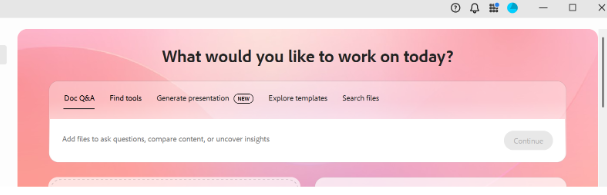
You should now have access to the Acrobat Studio functionality included with your account.
Learn About Adobe Acrobat Studio
The following Adobe resources can help you become familiar with Acrobat Studio and its included applications.
Adobe Acrobat Studio and Adobe Express
Adobe Express works with Acrobat to help users improve the design and appearance of PDF documents. Supported features include accessing Adobe Express design tools from Acrobat, applying templates, adding design elements, using colour themes, generating images, and inserting new pages.
Adobe Express
Adobe Express is a web-based content creation tool that can be used to create and enhance visual content such as flyers, presentations, webpages, graphics, and videos.
Adobe provides beginner and intermediate tutorials covering templates, video creation, photo editing, animation, text formatting, webpage creation, and other Adobe Express features.
Adobe Acrobat Pro
Acrobat Pro provides tools for working with PDF documents, including creating, editing, converting, combining, organizing, protecting, signing, and sharing PDFs.
Adobe’s Acrobat tutorials include learning paths for getting started, document accessibility, advanced PDF tasks, AI-powered features, forms, security, collaboration, and Acrobat integrations.
Recommended First Steps
If you are new to Acrobat Studio:
- Sign in to Adobe Acrobat using your full Niagara College email address.
- Open an existing PDF and explore the available editing and organization tools.
- Review the Acrobat tutorials to learn how to create, edit, convert, combine, or protect PDF files.
- Explore Adobe Express to learn how it can help you create or enhance visual content.
- Review the Acrobat AI Assistant and PDF Spaces tutorials available through Adobe’s Acrobat Learning Centre.
Troubleshooting
I signed in, but Acrobat Studio features are not available
Try the following:
- Confirm that you signed in using your full Niagara College email address.
- Close Adobe Acrobat completely.
- Reopen Adobe Acrobat.
- Check the profile icon in the upper-right corner to verify that the correct Niagara College account is signed in.
- Sign out and then sign in again using your Niagara College account.
I am unable to sign in
- Confirm that you entered your full Niagara College email address.
- Ensure that you can sign in successfully to other Niagara College services.
- Close and reopen Adobe Acrobat, and then try signing in again.
- Capture a screenshot of any error message that appears.
Need Help?
If you are unable to access Acrobat Studio after following these steps, please contact the IT Service Desk.
Phone: 905-735-2211 ext. 7642
Hours: Monday-Friday 8:00am-4:30pm
Email: [email protected]
Website: http://its.niagaracollege.ca
Submit a ticket: http://niagaracollege.teamdynamix.com