

Sending Faxes
With SRFax, you can send and receive faxes via email or the secure SRFax portal.
Please note that if your fax transmissions are subject to PHIPA (Ontario’s Personal Health Information Protection Act) compliance requirements, all faxes must be sent through the SRFax portal. This access has been provided for the NC Dental Clinic (Health Sciences) and Research and Innovation departments to support these requirements.
If you require PHIPA-compliant faxing and do not currently have portal access, please submit an ITS service request to have your department or service area configured for portal fax transmission.
How do I send a fax via email? (for non-PHIPA communications only)
Niagara College employees including College guest accounts using the shared fax number:
1. In Outlook or Outlook on the Web (OOW), compose a new message.
2. In the To field, enter the recipient’s fax number using the format: 1 + Area Code + 7-digit Number, example: [email protected] Attach your document, enter a subject line, and select Send.
Enrolment Services, Financial Services, and Human Resources employees using the dedicated department fax number:
1. In Outlook compose a new message. If you do not see the From field, click Options > From
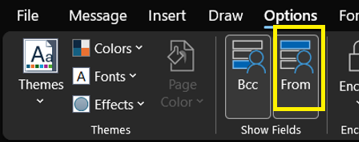
2. Select From > Other Email Address and enter the appropriate email:
Enrolment Services – [email protected]
Financial Services – [email protected]
HR – [email protected]
3. In the To field, enter the recipient’s fax number using the format: 1 + Area Code + 7-digit Number. Example: [email protected] Attach your document, enter a subject line, and select Send.
NC Dental Clinic (Health Services) using the dedicated clinic fax number:
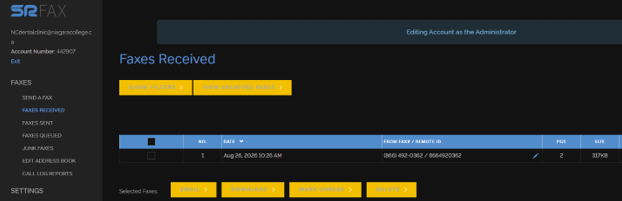
Go to the SRFax – NC Dental Clinic Portal (we recommend bookmarking this site, but it will also appear on the NC Portal). The URL uses your regular staff account through single sign on and should not prompt for a username / password.
The interface is similar to RightFax for managing faxes. No long distance codes are required.
Research and Innovation employees using the dedicated department fax number:
The SRFAX – Research and Innovation Portal is in development, instructions coming soon …
Which file formats are supported?
SRFax supports over 150 file types, including PDF, Microsoft Word (.docx), Excel (.xlsx), PowerPoint, TXT, and common image formats (TIFF, PNG, JPG). For multi-page documents, single multi-page PDF or TIFF-F files are strongly recommended.
How do I generate or suppress a cover page when emailing a fax?
If you include text in the Subject line or Body of your email, SRFax automatically generates a cover page using the subject and body text as comments. To send a fax without a cover page, leave both the Subject line and the Email Body completely blank.
Can I send a fax to multiple recipients at once?
Yes, you can send a single transmission to up to 50 fax numbers simultaneously by listing multiple @srfax.com email addresses in the “To” field.
Receiving Faxes & Notifications
How do I view received faxes?
Enrolment Services, Financial Services, and Human Resources employees:
Faxes will arrive via email to:
Enrolment Services – SRFax – Enrolment Services [email protected]
Financial Services – SRFax – Financial Services [email protected]
HR – [email protected]
NC Dental Clinic employees (Health Services):
For PHIPA related faxes, an email notification will be sent to [email protected]. Please note that this notification will not have the fax itself attached. To retrieve the fax, those assigned to this number will login into the SRFax Portal.
Research and Innovation employees:
The SRFAX – Research and Innovation Portal is in development, instructions coming soon …
All other College employees including guest accounts:
Faxes will be routed by the Communications Technician team via email from [email protected].
The general fax mailbox is monitored twice daily. If you are expecting an urgent fax, please contact the Communications Technician team at extension 0 for assistance.
Why can’t I see an incoming fax in my email?
If your account is configured for strict PHIPA compliance, document storage in emails or third-party clouds may be disabled. You must log into the SRFax Portal to access and securely download incoming PDFs.
How long does it take for a fax to arrive?
Once the sender’s fax machine finishes transmitting, SRFax processes and delivers the notification to your inbox or portal within a few minutes.
How long does it take for a fax to be sent via email?
Sending a fax via email can take up to 15 minutes to be sent to the recipient. Senders will receive an email notification upon successful delivery.
Account & Troubleshooting
Why did my Email-to-Fax fail or bounce back?
Enrolment Services, Financial Services, and Human Resources employees:
You may not have sending permissions for your department’s shared email address yet. Contact the ITS Service Desk to request access.
Research and Innovation employees:
You may not have sending permissions for your department’s shared email address yet. Contact the ITS Service Desk to request access.
All other College employees including guest accounts:
Forward the error or bounce-back email to the ITS Service Desk so our team can investigate.
How do I block junk or spam faxes?
If you receive a junk fax, forward the email notification to the ITS Service Desk and ask to have the sender’s fax number added to the block list.
Will the line be busy if multiple people fax us at the same time?
No. SRFax uses a “Never Busy” virtual trunk line system, allowing unlimited simultaneous incoming faxes to a single phone number without callers receiving a busy signal.