

Student Lab Printing
Adding Funds to Your Account
Students have 2 ways to add funds to their account, online, through a secure payment page using Visa or MasterCard or by depositing coins at one of 4 AddValue machines.
Online Payment
- Log into the print portal https://printingnc.niagaracollege.ca with your username and password.
- From the menu choose Add Credit
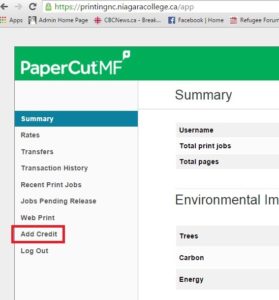
- Choose the amount to add to your account and click Add Value. Note: Transactions are limited to $2.00, $5.00 or $10.00 per transactions.
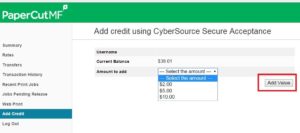
- Follow the prompts on the proceeding pages to add funds to your account.
Adding funds through AddValue Machines
- There are two AddValue machines at the Welland Campus, one in the Library at the IT Help Desk and one in the lower library area near the commons entrance. There are also two AddValue machines on the Niagara on the Lake campus, located inside the library and in the hall outside Lab N201. Follow the instructions on the machine to add funds to your account.
Submitting Print Jobs
Students will find xeroxes/printers in all Niagara College labs, Library or learning commons computers. Login to a Computer using your Username ex: Jsmith64 and your password. The name of the two main Printer Queues are BlackAndWhite and Colour, The cost for black and white print jobs is $0.08 per page and colour jobs are $0.15 per page.
BlackAndWhite – Accepts black and white documents with a paper size of 8.5×11”, 11 x17 (Tabloid) or 8.5×14″ (Legal)
Colour – Accepts colour documents with a paper size of 8.5×11”, 11 x17 (Tabloid) or 8.5×14″ (Legal)
Releasing Your Print Jobs
- Once you have the document you want to print, simply go to your print option and by selecting printer to Black and White or Color this will go into a papercut Que when you hit print
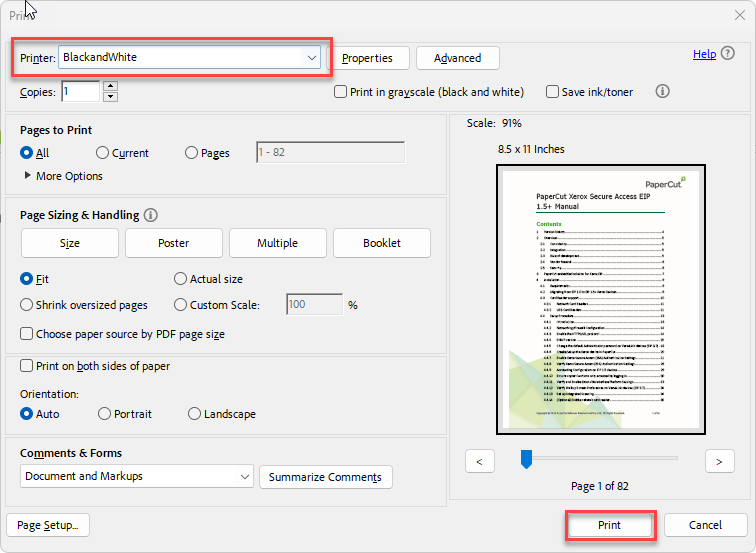
- Note: Jobs can be released anywhere! For example, if you print in a room in Simcoe you can release the job in the library.
- Tap your student card on the Xerox, select the document(s) you would like to print and select Release
- Note: If you do not have your student card you can select the Keyboard Icon at the top right as shown and manually sign in with your username ex: JSMITH54 and password
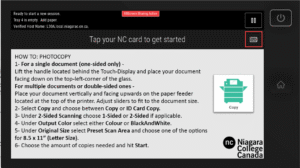
- Note: Jobs left unreleased will be deleted after 4 hours.